
Working with data
The same way of working in every list: add, edit, delete, search and sort, plus global search and quick create.
Whichever section you are in — Clients, Cars, Mechanics, Work orders, Parts or Services — the way of working is the same, so you don't have to learn it again for every page.
Add, edit and delete
Every list has a clear button to add a new record, and from the list you can edit or delete any existing row, with a confirmation before deleting to avoid accidental mistakes.
- Add, edit and delete records in any section
- Mandatory confirmation before deleting
Search and filter
Above every list there is a filter and search bar — you can quickly search by name, phone number, registration number or other criteria relevant to that section, without scrolling manually through dozens of records.
Global search
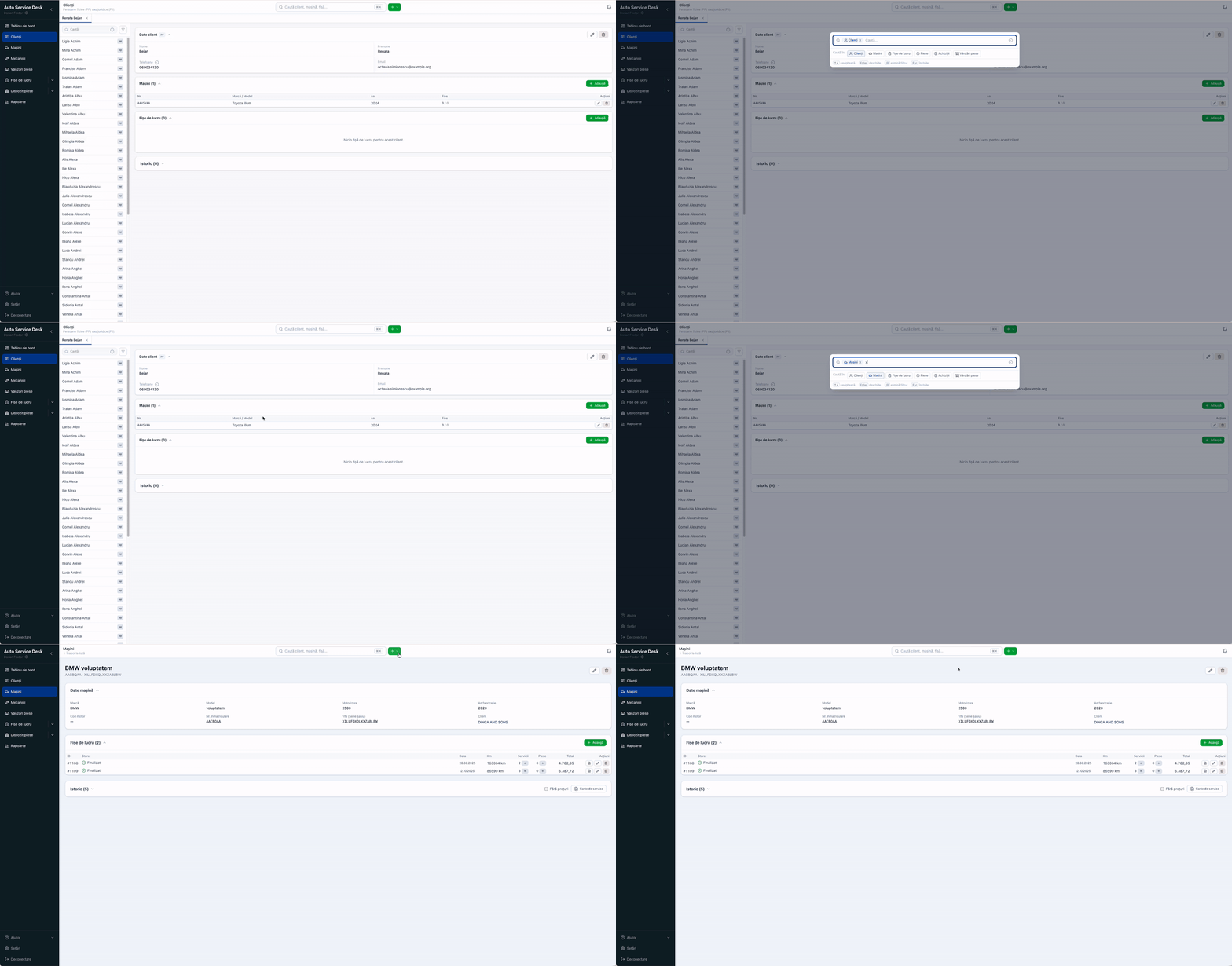
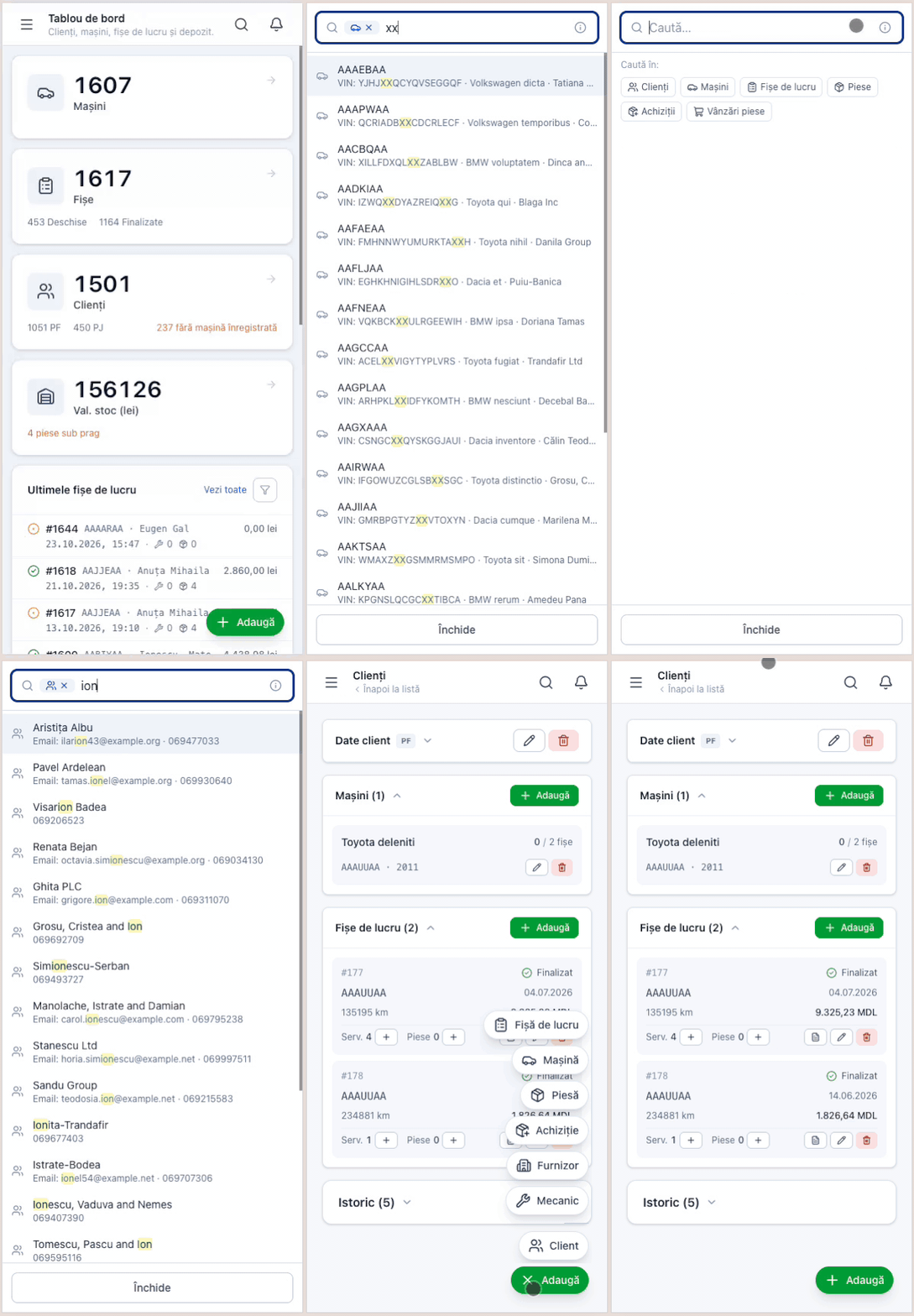
From the top bar you can search anywhere in the app, from any page: clients, cars, work orders, parts, purchases and part sales. Click the search field or press Ctrl K (⌘ K on Mac).
- Just type and see the results grouped by section
- To search only one section, start with a keyword followed by a space: client, masina (car), fisa (work order), piesa (part), achizitie (purchase), vanzare (sale). Example: “masina AAJJ”
- Find a work order by its number: “#1618”
- Navigate with the arrow keys and open a result with Enter
- You can scan a part's barcode straight into the search field
Quick create (the “New” button)
The New button next to search opens the form for a new record without leaving the page you are working on: work order, client, car, part, purchase, supplier or mechanic.
- On a client's page, the new car and work order already have the client selected
- On a car's page, the new work order already has the car selected
- With the menu open, press the letter next to each option (for example F for a work order)
Sorting columns
You can sort a list's columns (for example by date or by name) by clicking the column header, to find exactly what you are looking for more easily.